


Show the whole product
Use one sharp, evenly lit product photo. Keep straps, sleeves, hems and soles visible. Avoid cropped items, heavy filters and busy backgrounds.
Turn a clear photo of your clothing, bag, shoes or jewelry into on-model images for your store. Choose a preset look or start with Auto—no prompt required.
1Product photoOne product, clear view
No photos handy?
Photos stay on your device until you press create, then are deleted after 7 days. Never used for training.
How it works
ShopPhoto AI’s AI fashion model generator puts your real product on an AI model. Upload one photo of a garment, bag, pair of shoes or piece of jewelry, pick a look or leave it on Auto, and download on-model photos for listings, ads and social posts. The models are AI-generated. Review the garment fit, proportions, colors and fine details against the original before publishing. Start with a prepared look, or add optional scene details.
A clear photo of the item on its own is enough: a dress on a hanger or a flat lay, a bag on a table, a pair of shoes. No mannequin or model needed.
Each look sets the AI model, scene, pose and framing at once. Auto picks a scene that suits your product. Add your own details in a line of text if you like.
Choose quality and image count, then check the displayed credit cost before generating. Compare the result with your original before downloading. Available image counts depend on your account.
Before you generate
Use one sharp, evenly lit product photo. Keep straps, sleeves, hems and soles visible. Avoid cropped items, heavy filters and busy backgrounds.
Standard 1K: 1 credit per image; HD 2K: 3 credits per image; HD 4K: 5 credits per image; Studio 2K: 6 credits per image; Studio 4K: 10 credits per image. Each generated image is charged separately.
Compare credit packs and plansCompare logos, patterns, hardware, fit and proportions with the original. Generated photos are not a fit simulation or a substitute for product measurements.
Every product you sell
Tell the tool what you sell and the AI model wears, carries or holds it the way a shopper would. These AI-generated examples illustrate possible looks using unbranded products; your results will vary.
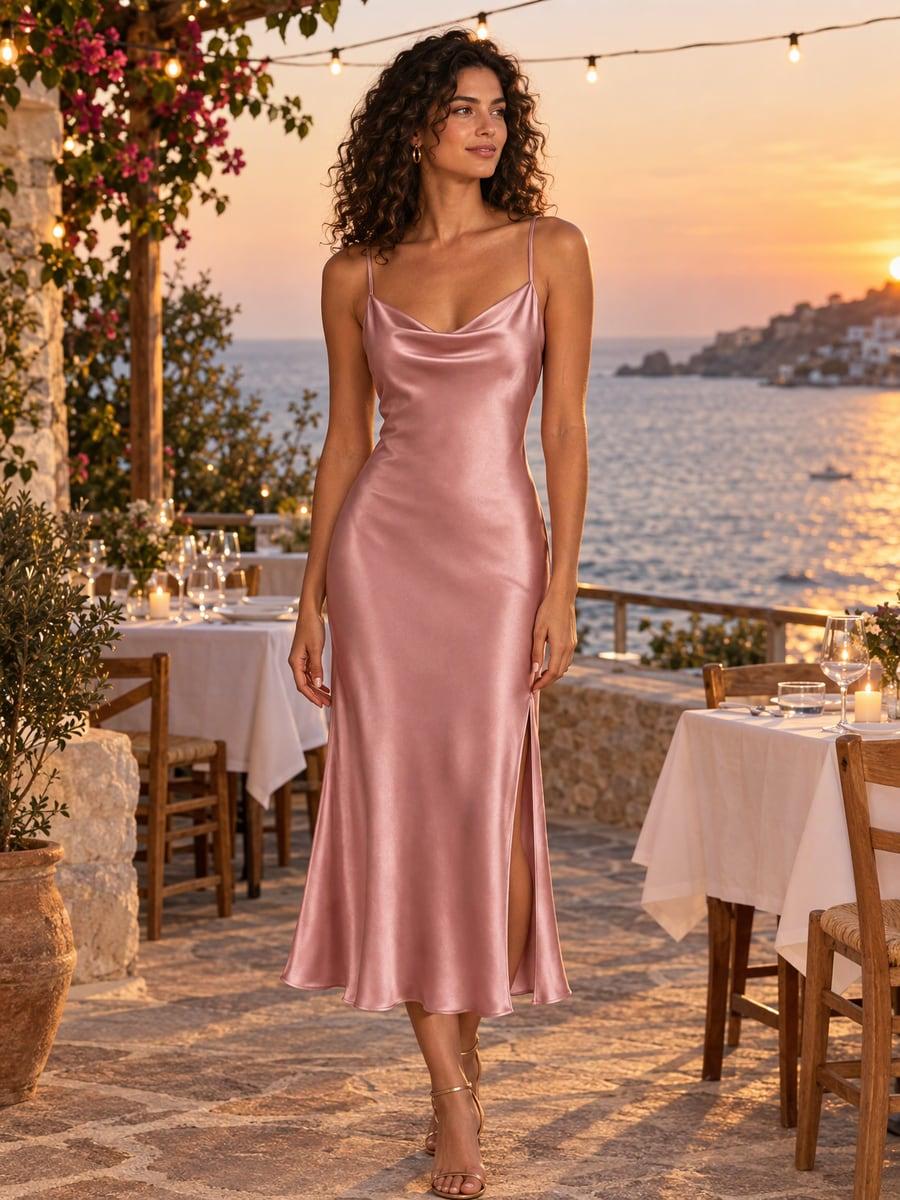
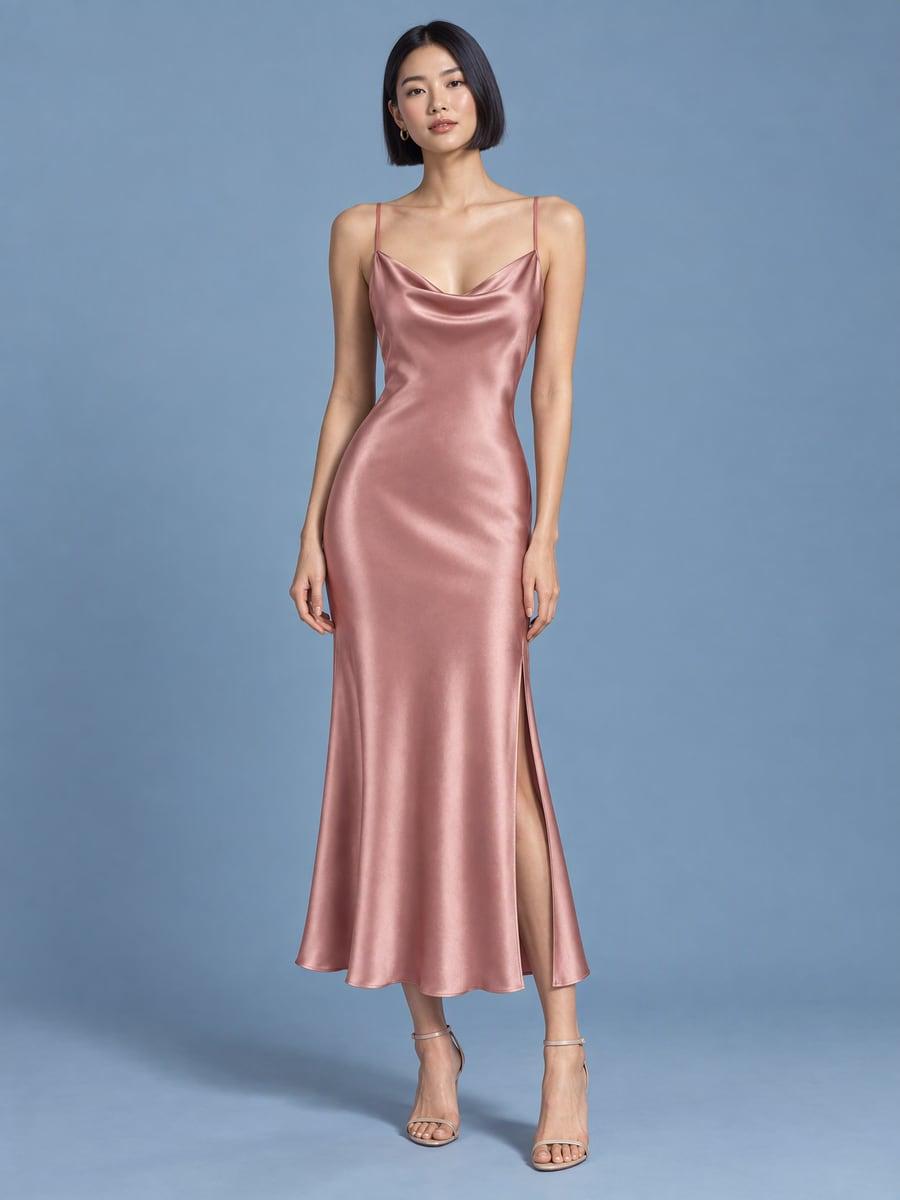
Start with a clear hanger, flat-lay or ghost-mannequin photo of a dress, top, knitwear or outerwear. Check the generated neckline, hem, pattern and fabric carefully; an AI image is not proof of how the garment fits a real customer.
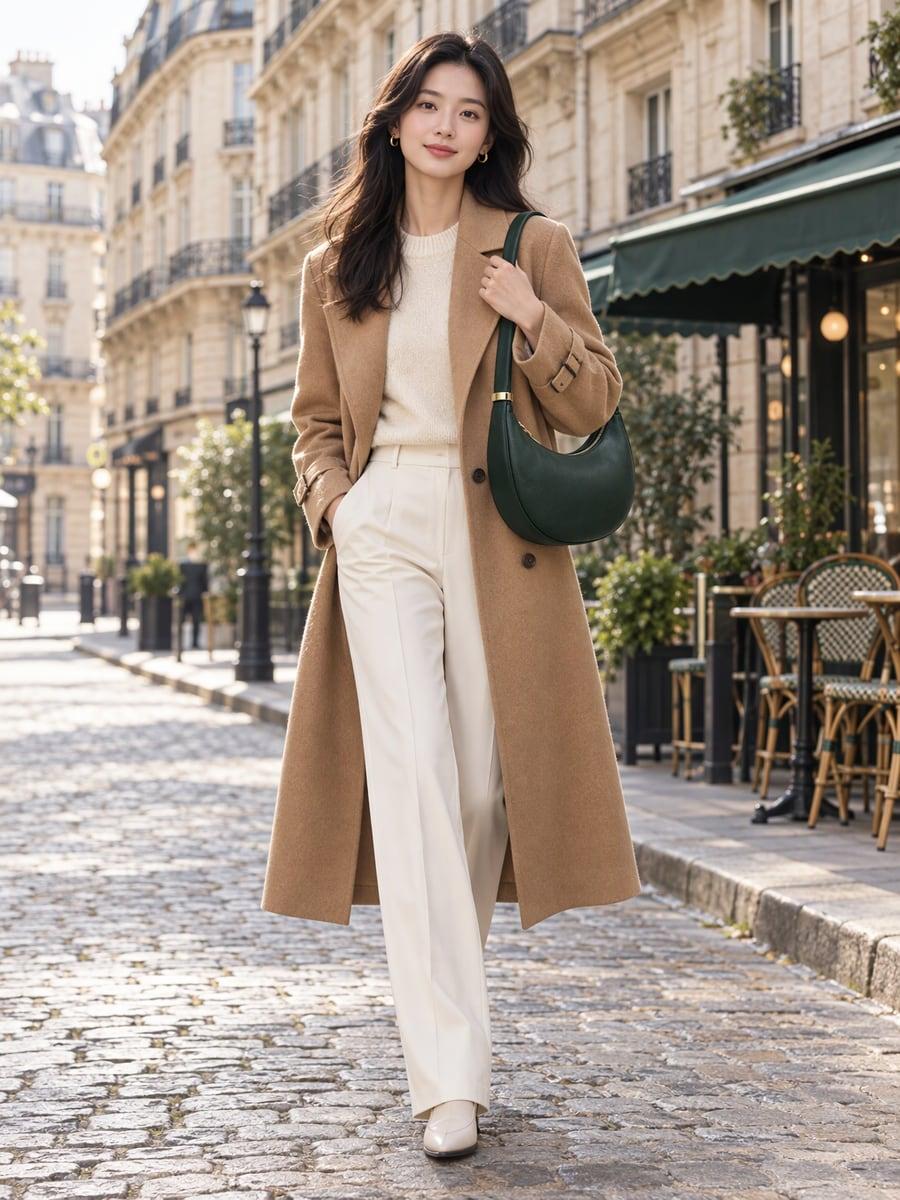
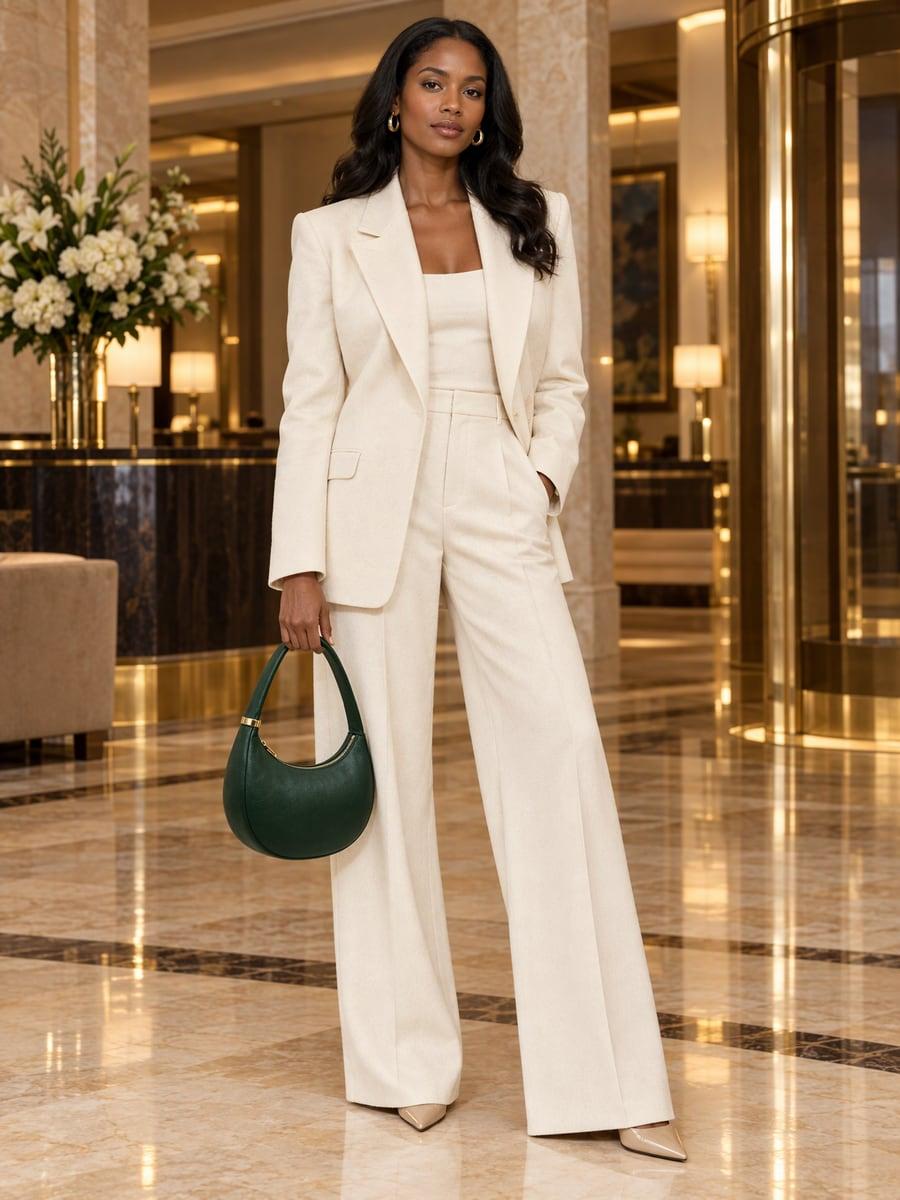
Explore carrying and shoulder poses for handbags and totes. Check the strap, hardware and bag proportions against the original; generated scale should not replace measured product dimensions.
Handbag product photography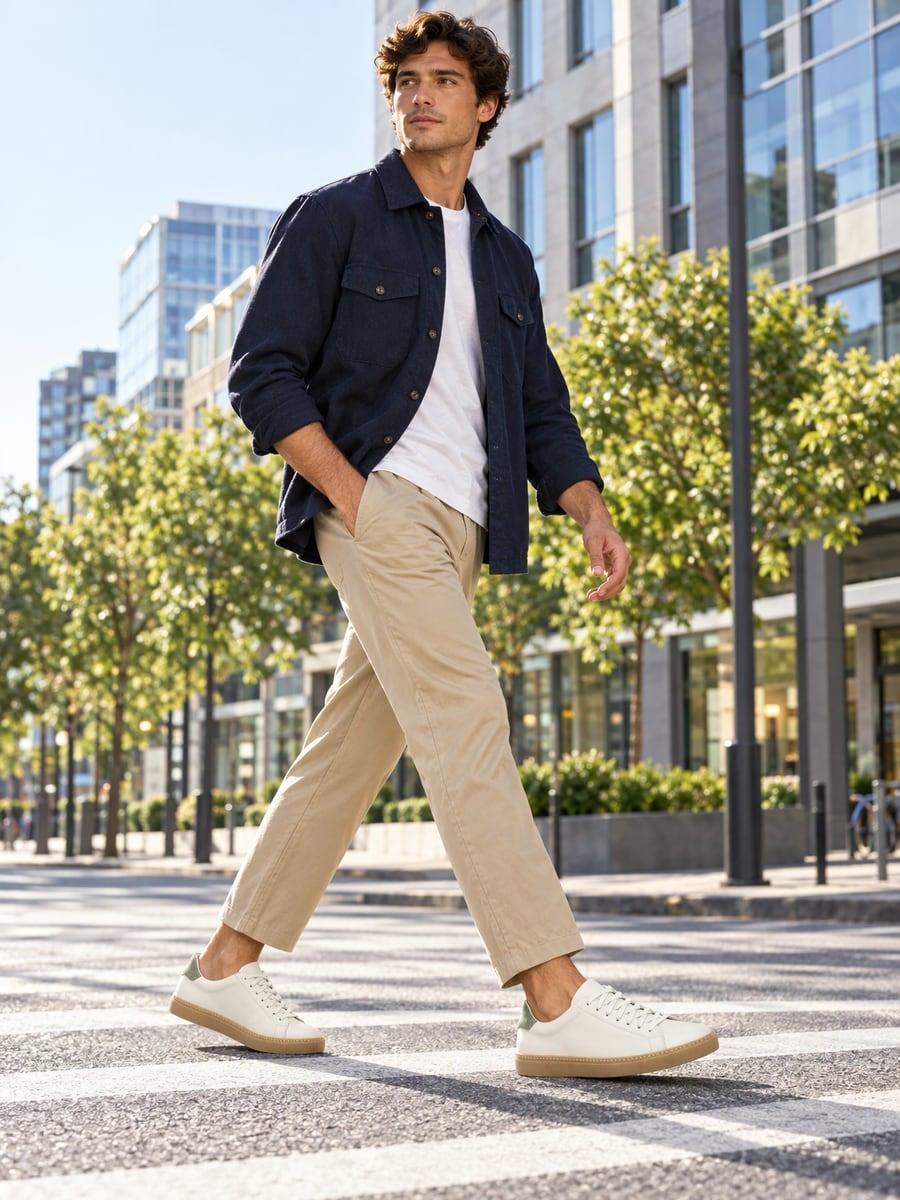
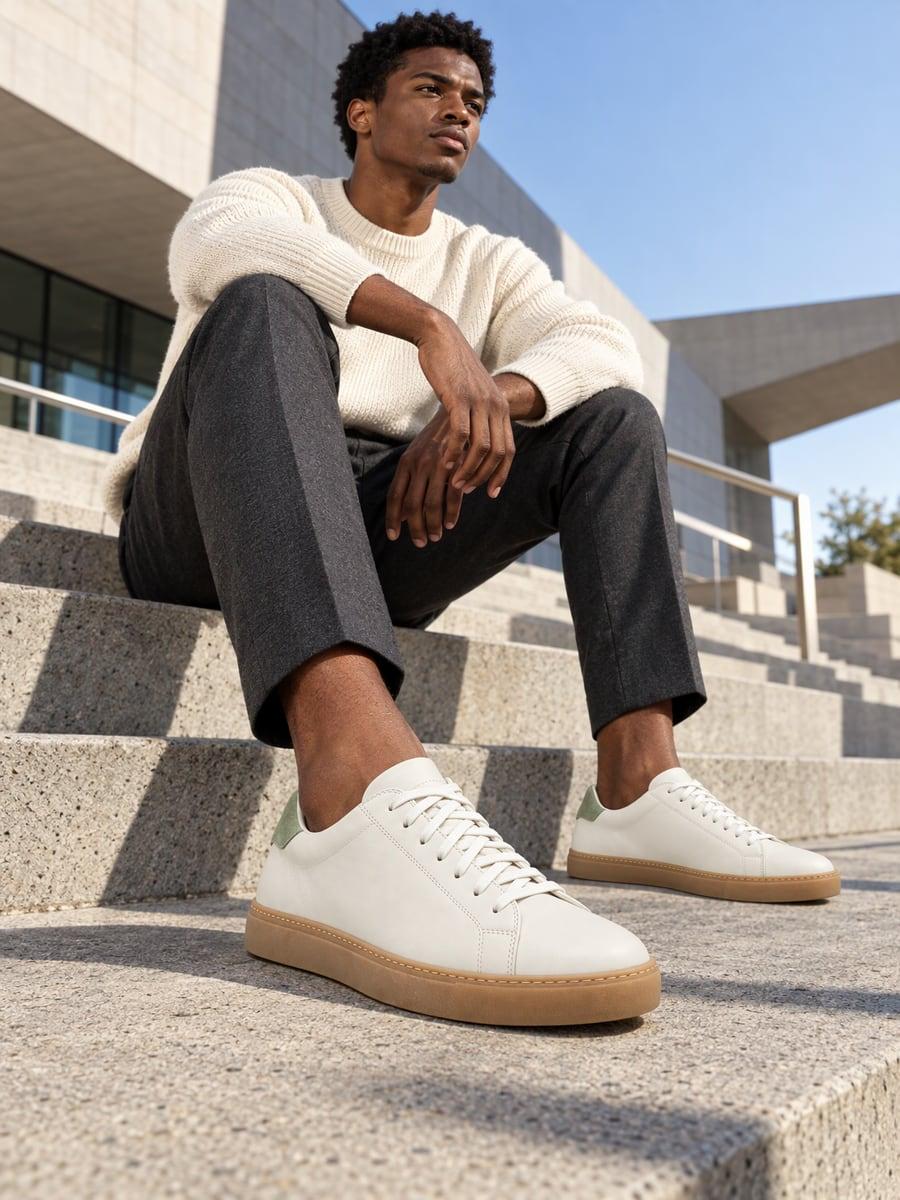
Create worn-on-model concepts for sneakers, flats and heels. Choose framing that shows the feet, then check that both shoes, soles, laces and any logos match the product.
Use a close-up detail shot for jewelry and accessories. Fine chains, stones and small engravings need careful review. Keep original close-up photos available to show customers the actual finish.
Jewelry product photographyAn AI model photoshoot, preset
Each look sets the scene, light, pose and framing for you. Leave it on Auto for a scene chosen for each image, or pick one and fine-tune the model, age, pose and shot. You can also describe the scene in your own words, like “rooftop bar at night”.
For clothing brands and online sellers
| Model photoshoot | AI fashion model generator | |
|---|---|---|
| What you need | Model, photographer, studio or location, styling and retouching | One clear photo of the product |
| Workflow | Arrange a model, shoot the item and edit the selected photos | Upload, choose settings and generate; time varies with quality and queue |
| Variety | Depends on the booked models, locations and shoot plan | Different models, scenes, poses and shot types from the same photo |
| Cost | Day rates for model, photographer and studio | Credit packs from $9.99 or plans from $29.99/month. Every image is paid with credits. |
| Accuracy | The real item, photographed | Generated interpretation of the item; review details, fit and scale before listing |
It is a tool that creates photos of a model wearing or holding your product without a photoshoot. You upload a photo of the product, and AI generates a realistic, fictional model and scene around it. Review the output against your original product photo before using it.
Upload one clear photo of the garment (on a hanger, laid flat or on a ghost mannequin), choose Clothing as the product type, pick a look or keep Auto, and press Generate. Check the quality and credit cost before generating. Processing time varies.
It can. The generation instructions aim to preserve your item, but the output may change its fit, color, shape, print or hardware. Compare every image with the original and do not publish results that misrepresent your product.
The people shown are AI-generated rather than models booked for a photoshoot. Do not request impersonations of real people, and review the output before using it in a campaign.
Yes. Pick a look (studio, city street, vacation, luxury hotel, garden, gallery, café or urban), or leave it on Auto. Under Fine-tune you can set the model, age, pose and shot (full body, half body or close-up detail), and you can type extra details in your own words.
Clothing, bags, shoes, jewelry and accessories: anything a person wears, carries or holds. For other products, choose Other and check whether the generated pose represents the item accurately.
Credit-generated images have no watermark and include commercial use under our terms. Use only products and source photos you have rights to, check the result for accuracy, and follow your store or advertising platform’s current requirements. On-model scenes should not be assumed to meet Amazon main-image requirements.
Try one watermarked preview free, get 3 free credits when you sign up, then choose a credit pack or a monthly plan. Credit packs from $9.99 or plans from $29.99/month.
Standard 1K: 1 credit per image; HD 2K: 3 credits per image; HD 4K: 5 credits per image; Studio 2K: 6 credits per image; Studio 4K: 10 credits per image. Each output is charged separately. Check the total shown for your selected image count before generating.
Use a sharp photo of one product with the whole item visible, including straps, sleeves or soles. Choose even lighting and avoid heavy filters or objects covering the product. Upload JPG, PNG or WebP up to 20 MB.
The free preview creates one image. Credit packs allow up to 2 at once. Starter allows up to 2; Pro allows up to 4; Business allows up to 6. Each image uses credits at the selected quality.
Credits deducted for a failed generation return to your balance automatically. A completed image with inaccurate details is different from a failed generation; contact support if you need a result reviewed.
Virtual try-on lets a shopper see clothes on their own photo. An AI fashion model generator is for sellers: it creates on-model product photos for your listings and marketing, with models and scenes you choose.
Try one watermarked preview free, get 3 free credits when you sign up, then choose a credit pack or a monthly plan.