Refined natural light
Explore soft highlights and quiet shadows without building a miniature studio set.
For jewelers and accessory makers
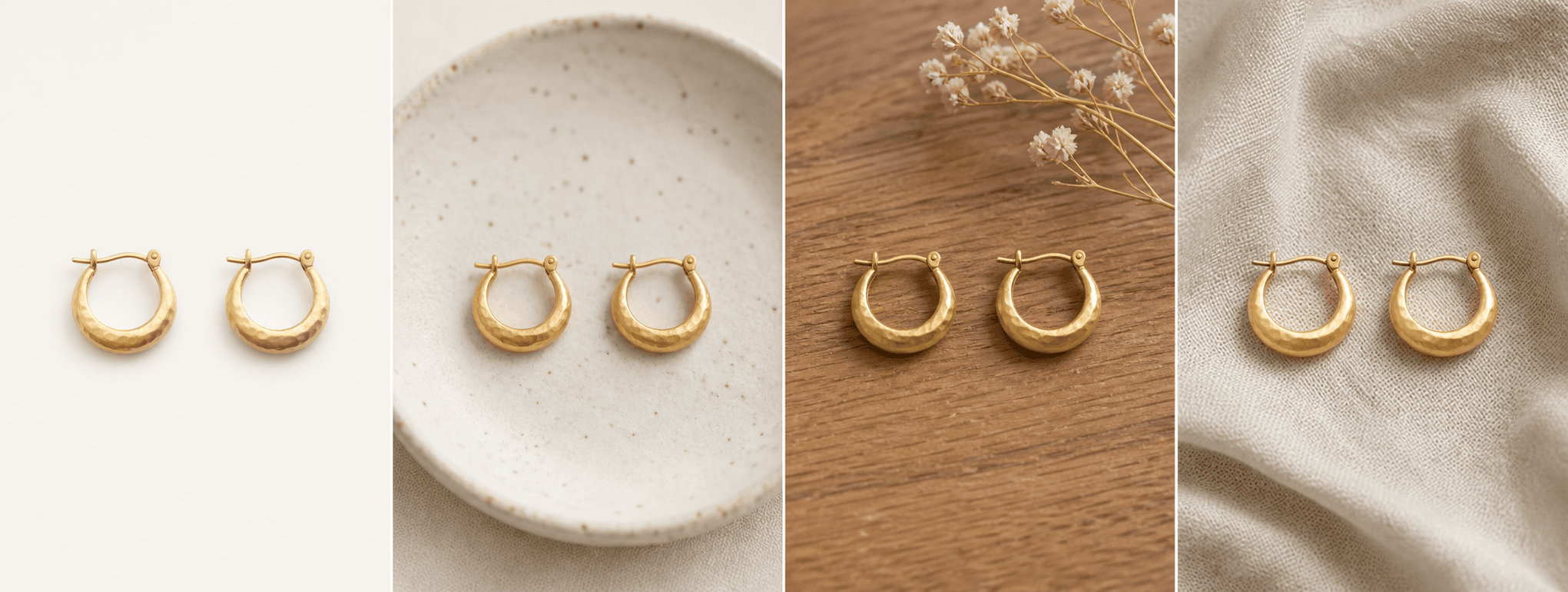
Create four refined tabletop scenes while using your real piece as the reference for metal, stone, silhouette, and fastening details.
Direct answer
Jewelry photography depends on details that are easy to distort: stone count, prongs, chain links, clasps, engraving, plating color, and reflective surfaces. A polished setting is useful only when the piece still matches what the buyer will receive.
ShopPhoto AI creates four supporting scenes from one real jewelry image. Use them for tabletop lifestyle, detail-led, and gift-ready contexts, then keep clear factual photos in the listing for scale, closure, measurements, and construction.
Explore soft highlights and quiet shadows without building a miniature studio set.
Create considered scenes for launches, collections, anniversaries, and gifting moments.
Zoom into stones, settings, clasps, and reflections before deciding to unlock the set.
A useful image system
Use generated scenes around factual close-ups and measurement images of the real piece.
Build a calm visual direction that helps related pieces feel like one collection.
Use texture and light to support the visible finish without inventing material claims.
Create a box, fabric, or keepsake setting that communicates a gifting occasion.
Source photo checklist
Jewelry needs a sharp, high-contrast source image because tiny errors can change the product.
The current workflow creates product scenes, not worn-on-model try-ons. Generative output can alter very small details, so inspect every piece at full size before publishing.
No prompt writing required
Choose one clear photo of the real product.
We create four distinct product scenes around it.
Inspect every preview and pay only if the set works.
Clear answers
Review accuracy, source photo, licensing, platform, and pricing details before you begin.
Use a sharp, well-lit photo of one complete piece on a simple contrasting background. Keep closures, stones, settings, chain links, and engravings visible and avoid clipped highlights.
Check stone count and shape, prongs, clasps, chain links, symmetry, metal color, engravings, reflections, and any logo or hallmark. Reject an image if a component changes.
The current four-scene workflow is designed for product-first tabletop and gift-ready images, not precise worn-on-model virtual try-on. Use real model photography when fit and scale matter.
No. Keep real macro views, measurements, closure views, and material documentation in the listing. Generated scenes are best used as supporting merchandising images.
Yes. Unlocked images include commercial use for product listings, stores, ads, email, and social posts. You remain responsible for accurate product representation and channel-specific rules.
No. Generate four watermarked previews for free, then pay $4.99 once only if you want to unlock the complete high-resolution set.
Keep exploring
See the result first
Upload one clear image of the real piece and review every scene before unlocking the set.
Create four free previews